 European company based in France
Download Windows 10 and 11 Legally: Official 2026 Install Guide
Download Windows 10 and 11: The Official Method
Looking to download Windows 10 or Windows 11? Good news: Microsoft makes its operating systems available as a free download. The download is 100% legal and official. Only activation requires a product key (license).
In this guide, we show you exactly how to download Windows from official Microsoft sources, create a USB installation drive, and activate your system with an affordable genuine key.
Table of Contents
- 1. Is downloading Windows legal?
- 2. Download Windows 11
- 3. Download Windows 10
- 4. Create a USB installation drive
- 5. Install Windows step by step
- 6. Activate Windows with a genuine key
- 7. Frequently asked questions
1. Is Downloading Windows Legal?
Yes, absolutely. Microsoft provides its ISO files and its Media Creation Tool for free on its official website. Downloading Windows is completely legal and free. What requires payment is the activation license (product key).
You can even install and use Windows without a license, with a few limitations (“Activate Windows” watermark, limited personalization). But for normal use, an activation key is essential.
2. Download Windows 11
Method 1: Media Creation Tool (recommended)
- Go to the official Microsoft Windows 11 download page
- Download the Media Creation Tool
- Run the tool and accept the terms
- Choose “Create installation media for another PC”
- Select the language (English) and the edition (Windows 11)
- Choose “USB flash drive” or “ISO file”
- Wait for the download to finish (around 4-6 GB)
Method 2: Direct ISO download
- On the same page, the “Download Windows 11 Disk Image (ISO)” section
- Select “Windows 11 (multi-edition ISO)”
- Choose the English language
- Click the 64-bit download link
3. Download Windows 10
Windows 10 is still available as an official download despite the planned end of support:
- Go to the official Microsoft Windows 10 download page
- Download the Media Creation Tool for Windows 10
- Run the tool
- Choose “Create installation media”
- Select English, Windows 10, 64-bit
- Choose a USB drive or ISO
Important note: Support for Windows 10 ends in October 2025. We strongly recommend Windows 11 for all compatible new PCs.
4. Create a USB Installation Drive
Requirements:
- A USB drive of 8 GB minimum (all data will be erased)
- A working PC with an internet connection
- 30 to 60 minutes depending on your internet speed
With the Media Creation Tool:
The tool creates the USB drive automatically. Plug in your drive, select it in the tool, and wait for the process to finish.
With an ISO file + Rufus:
- Download Rufus (a free tool)
- Plug in your USB drive
- In Rufus, select your USB drive and the downloaded ISO file
- Partition scheme: GPT (for UEFI/Windows 11) or MBR (for older BIOS)
- Click Start
5. Install Windows Step by Step
- Back up your data to an external drive
- Plug the USB drive into the target PC
- Restart and open the boot menu (F2, F12, Del, or Esc)
- Boot from the USB drive
- Follow the wizard: language, keyboard, then “Install now”
- When it asks for the key: enter it now or click “I don’t have a product key” to activate later
- Choose your edition (Home or Pro)
- Accept the license terms
- Choose “Custom” for a clean install
- Select the partition, format it if needed, and start the installation
- The PC will restart several times — this is normal
- Set up your user account and your preferences
Detailed guide: Format and reinstall Windows 11 — Complete guide.
6. Activate Windows With a Genuine Key
After installation, activate Windows with your product key:
- Settings → System → Activation
- Click “Change product key”
- Enter your key and confirm
Where to buy your key? At euroshopkey.com, genuine Microsoft licenses are available at unbeatable prices:
| License | euroshopkey.com price |
|---|---|
| Windows 11 Professional | see price |
| Windows 11 Home | see price |
| Windows 10 Professional | see price |
| Windows 10 Home | see price |
Full activation guide: How to activate Windows 11.
7. Frequently Asked Questions
Is downloading Windows really free?
Yes. The download and installation are free. Only the activation key costs money.
Can I use Windows without activating it?
Yes, but with limitations: a permanent “Activate Windows” watermark, the inability to change the wallpaper, and some features locked.
How big is the Windows ISO file?
Windows 10: around 4.5 GB. Windows 11: around 5.5 GB. Plan for a USB drive of 8 GB minimum.
Can I download Windows 10 after end of support?
Yes, the download will remain available. But security updates will stop in October 2025. We recommend moving to Windows 11.
Related guides
- Windows & Office activation errors: the complete fix guide
- Windows 10 end of support: your options in 2026
- Windows 10 Home vs Pro vs Enterprise: which license to buy
🔑 Our best-selling licenses right now
 Microsoft Office 2024 Pro Plus€24.90 · key by email within minutesSee the offer
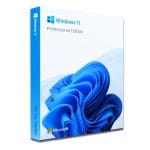 Windows 11 Professional€9.90 · key by email within minutesSee the offer
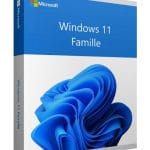 Windows 11 Home€8.90 · key by email within minutesSee the offer
Genuine Microsoft licenses · lifetime replacement guarantee · email support 24/7