

How to Install Office 2024 on PC: Complete Step-by-Step Guide
You’ve just bought your Office 2024 license and you’re wondering how to install it? Whether you’re starting from scratch or replacing an older version, this guide walks you through it step by step, from receiving your key to launching Word, Excel and PowerPoint on your PC.
Installation takes less than 15 minutes, and we’ve documented every screen so you’re never lost.
Contents
- 1. Before you start: checks
- 2. Step-by-step installation
- 3. Activate your Office 2024 license
- 4. Uninstall an older version of Office
- 5. Fixing installation problems
- 6. Frequently asked questions
1. Before you start: checks
Before launching the installation, make sure your PC meets the minimum requirements and that you have everything you need.
Minimum system requirements
| Component | Minimum required | Recommended |
|---|---|---|
| Operating system | Windows 10 (build 1903+) | Windows 11 |
| Processor | 1.6 GHz dual-core | 2 GHz quad-core |
| RAM | 4 GB | 8 GB |
| Disk space | 4 GB free | 10 GB free |
| Display | 1280 x 768 | 1920 x 1080 |
| Internet connection | Required for installation and activation | — |
What you need
- Your license key: 25 characters in the format XXXXX-XXXXX-XXXXX-XXXXX-XXXXX (received by email if purchased at euroshopkey.com)
- A Microsoft account: free, create one at account.microsoft.com if you don’t have one
- A stable internet connection: the download is around 3 GB
💡 Important
If an older version of Office is already installed (2019, 2021, or Microsoft 365), it’s recommended to uninstall it before installing Office 2024 to avoid conflicts. We explain how in section 4.
2. Step-by-step installation
Step 1: Go to setup.office.com
Open your browser and go to setup.office.com. It’s the official Microsoft portal for installing Office. Never download Office from any other site — only from Microsoft.
Step 2: Sign in with your Microsoft account
Enter your Microsoft email address (Outlook, Hotmail, or Live). If you don’t have an account, click “Create an account” — it’s free and takes 2 minutes.
Step 3: Enter your product key
Type your 25-character key. The dashes are added automatically. Click “Next”. Microsoft verifies the key and links it to your account.
Step 4: Choose the language and version
Select English and choose between the 32-bit or 64-bit version. For the vast majority of modern PCs, choose 64-bit (faster and handles memory better).
💡 32-bit or 64-bit?
Choose 64-bit unless you use old Excel or Access add-ins that are only compatible with 32-bit. When in doubt, 64-bit is the right choice.
Step 5: Download and run the installer
Click “Install”. A small file (OfficeSetup.exe) downloads. Run it. The Microsoft installer will then download and install all the Office apps automatically.
Step 6: Wait during installation
Installation takes between 5 and 15 minutes depending on your internet connection. A progress bar shows you how it’s going. Don’t turn off your PC or close the installer.
Step 7: Launch an Office app
Once finished, open Word, Excel or PowerPoint from the Start menu. On first launch, Office will ask you to sign in with your Microsoft account and accept the license. Done!
3. Activate your Office 2024 license
In most cases, if you entered your key on setup.office.com, Office is already activated automatically. To check:
- Open Word or Excel
- Click File → Account
- Under “Product Information”, you should see “Product Activated” with “Microsoft Office Professional Plus 2024”
If activation didn’t happen automatically, check out our complete activation guide — the method is similar for Office.
4. Uninstall an older version of Office
Having two versions of Office at the same time can cause errors and conflicts. Here’s how to cleanly uninstall the old version.
Simple method: via Windows Settings
- Settings → Apps → Installed apps
- Look for “Microsoft Office” in the list
- Click the three dots → Uninstall
- Follow the instructions and restart your PC
Complete method: the Microsoft tool
If the simple method doesn’t work, Microsoft offers a complete removal tool (Microsoft Support and Recovery Assistant). It cleanly removes all traces of Office. Search for “Microsoft SaRA tool” on the official Microsoft site.
5. Fixing common installation problems
Error “Installation stuck” or “Couldn’t install”
- Temporarily disable your antivirus (it may block the download)
- Make sure you have enough disk space (minimum 4 GB free)
- Uninstall any older version of Office first
- Restart your PC and try again
Network error / interrupted download
- Check your internet connection
- Disable your VPN if you’re using one
- Try connecting your PC via Ethernet rather than Wi-Fi
- The installer automatically resumes where it stopped, just relaunch it
Office installs but won’t activate
- Check that your key is indeed for Office 2024 (and not 2021 or 2019)
- Make sure you’re signed in to the same Microsoft account you used on setup.office.com
- Try File → Account → “Change product key” to re-enter your key
- As a last resort, contact our technical support
6. Frequently asked questions
How long does the installation take?
Between 5 and 15 minutes depending on your internet connection. The download is around 3 GB. On a fiber connection, allow 5 minutes. On DSL, more like 15 to 20 minutes.
Can I install Office 2024 on several PCs?
A standard license activates Office on one PC. To install on a second computer, you need a second license. Our prices at euroshopkey.com are low enough to equip several machines.
Does Office 2024 work offline after installation?
Yes, completely. Once installed and activated, Office 2024 works without internet. It’s one of the advantages of the perpetual license compared with Microsoft 365, which requires a regular connection.
Which apps are included in Office 2024 Pro Plus?
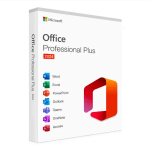
Word, Excel, PowerPoint, Outlook, Access and Publisher. It’s the complete suite. If you only need Word, Excel and PowerPoint, the Home and Student version is more economical.
Will my old version of Office be removed?
Not automatically, but it’s strongly recommended to uninstall it before installing Office 2024 (see section 4). The two versions can technically coexist, but it often causes bugs with file associations.
📌 Further reading
- Office 2024: All the New Features
- Microsoft 365 vs Office 2024: Which to Choose?
- The Best Windows + Office Bundles
🚀 Buy Office 2024 at the best price
Office 2024 Pro Plus — €29.99 | Office 2024 Home — €79.99
🔒 Secure payment • 🚚 Delivery in 5 minutes • 📞 Technical support included