 Europos įmonė, įsikūrusi Prancūzijoje
Puikus4,9/5Trustpilot1 800+ reviews Keitimo garantija visam laikui
Pagalba el. paštu 24/7
Europos įmonė, įsikūrusi Prancūzijoje
Puikus4,9/5Trustpilot1 800+ reviews Keitimo garantija visam laikui
Pagalba el. paštu 24/7
Microsoft Office 2019 Professional Plus

If Office 365, Office 2016, Office 2021, Office 2024 is installed on your PC, it is essential to uninstall it completely before installing Office 2019. Versions are not always compatible with each other.
This product works only on Windows.
Download the installation file matching your computer:
Once the file is downloaded, double-click on it (or right-click → Open). Run the program « setup.exe » or the Office 2019 executable file.
Let the installation wizard guide you. It takes a few minutes.
Once finished, you will find Word, Excel, PowerPoint, etc. in the Windows search bar.
Open Word or Excel. A window appears for you to enter your product key (received by email after your purchase):
Open Word or Excel, then go to Account → Change product key (in the left-hand menu).
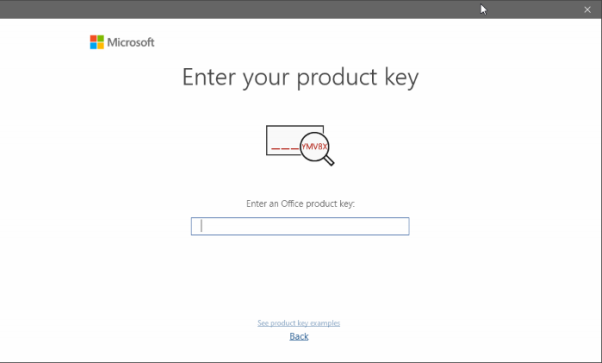
Try online activation first. If it does not work, choose phone activation:
This is normal! Click "Back" and choose phone activation.
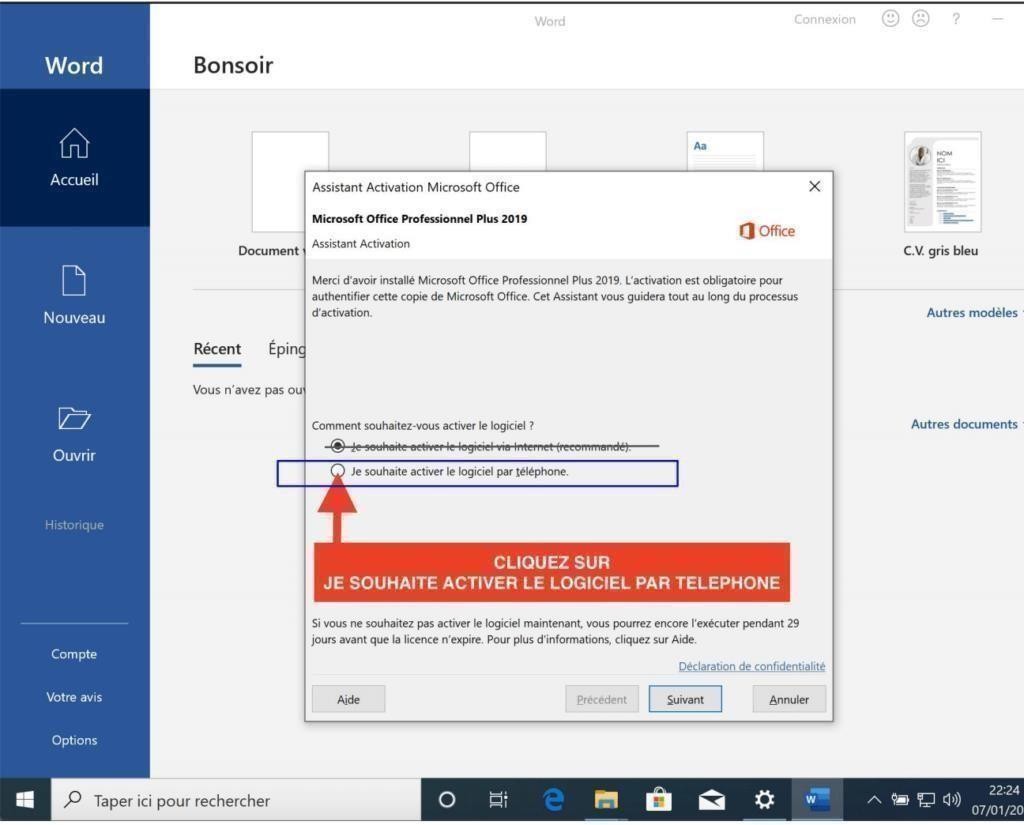
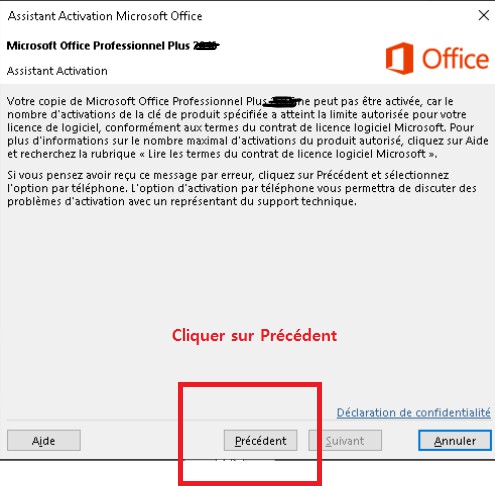
Phone activation is done very easily through the official Microsoft website. Follow these steps:
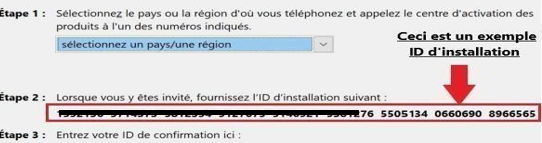
Note your installation ID — it appears in the Office window (the groups of digits outlined in red):
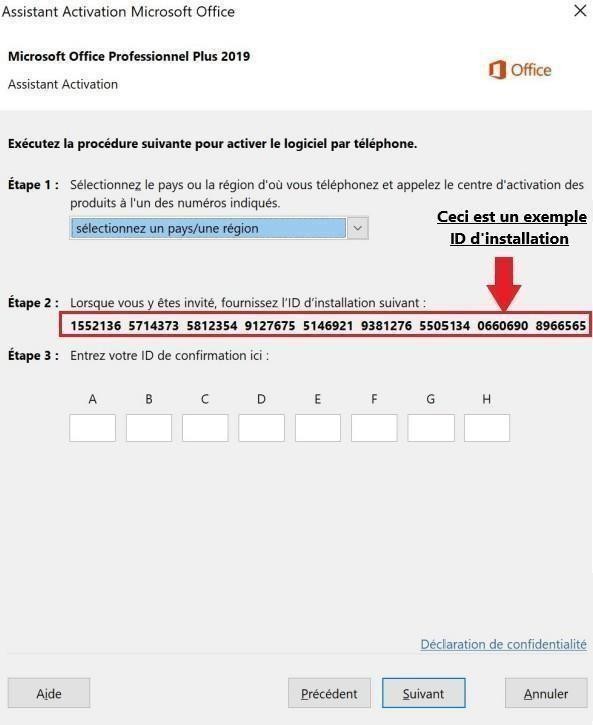
Go to the official activation website:
🔗 https://visualsupport.microsoft.com/
Sign in if necessary, then click "Activate a Microsoft product":
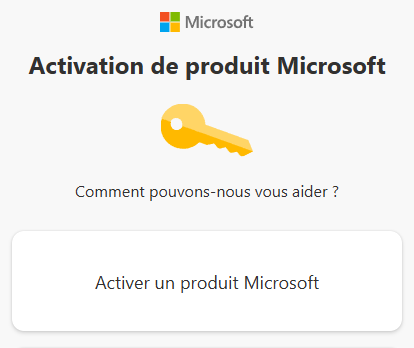
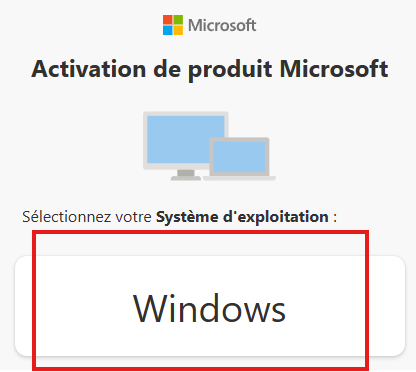
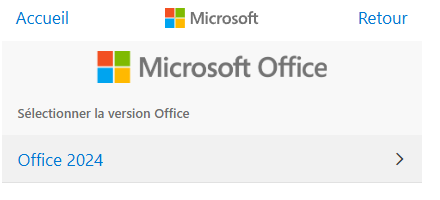
Select in order: Microsoft Office → Windows → Office 2019
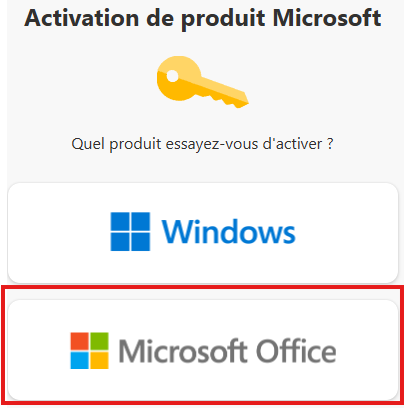
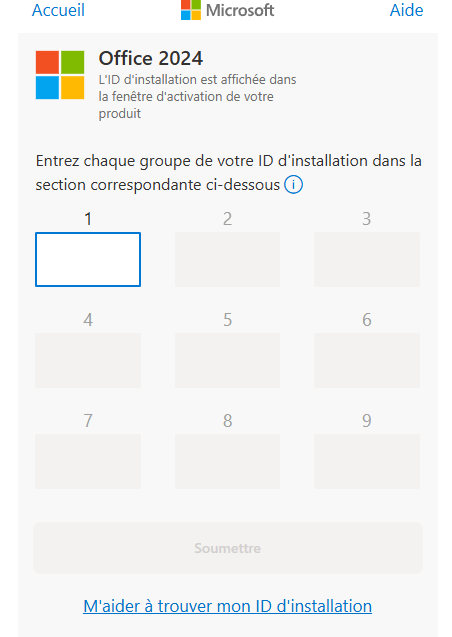
Enter your installation ID in the website fields:
Click "Submit". The website will provide you with a confirmation ID. Transfer these digits into the A, B, C, D, E, F, G, H boxes in the Office window, then confirm.
Your Office 2019 product is now activated! You can use Word, Excel, PowerPoint and all Office applications without limitation.
Use the free activation number for your country: See numbers by country →
Check our error troubleshooting guide →
For any question or technical issue, contact us by email:
Take advantage of our best deals on the most popular Microsoft licenses.
Jūsų krepšelis
