 Eiropas uzņēmums ar mītni Francijā
Teicama4.9/5Trustpilot1,800+ reviews Mūža nomaiņas garantija
Atbalsts e-pastā 24/7
Eiropas uzņēmums ar mītni Francijā
Teicama4.9/5Trustpilot1,800+ reviews Mūža nomaiņas garantija
Atbalsts e-pastā 24/7
Eiropas uzņēmums ar mītni Francijā
Teicama4.9/5Trustpilot1,800+ reviews Mūža nomaiņas garantija
Atbalsts e-pastā 24/7
Eiropas uzņēmums ar mītni Francijā
Teicama4.9/5Trustpilot1,800+ reviews Mūža nomaiņas garantija
Atbalsts e-pastā 24/7
TPM 2.0 is often just switched off in the BIOS: check it before writing off your PC. Whatever you decide, your Windows 11 license costs from 8,90 €.
Oriģinālas Microsoft licences, piegāde pa e-pastu dažu minūšu laikā
Windows 11 Pro – The Ultimate Professional Operating System Windows 11 Pro is the latest version of Microsoft’s operating system,...
Windows 11 Home - Genuine Microsoft license. Instant delivery by email.
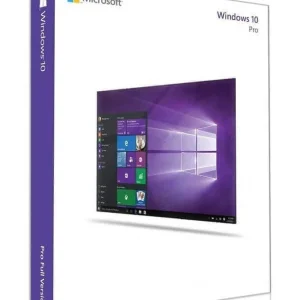
Official Windows 10 Professional license. Instant delivery by email. Activation on Microsoft servers. Lifetime warranty. Support included.
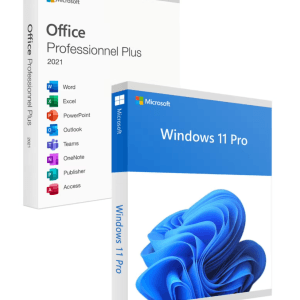
Official Windows 11 Pro + Office 2021 Pro Plus bundle license. Instant delivery by email. Activation on Microsoft servers. Lifetime...
Jūsu licence aktivizēta 3 soļos
Atrodiet mūsu oriģinālajos piedāvājumos savām vajadzībām atbilstošu licenci.
Skatīt piedāvājumusKarte, Apple Pay, Google Pay vai Bancontact, ar SSL šifrēts maksājums ar 3D Secure pārbaudi.
Droša apmaksaAtslēga pienāk pa e-pastu dažu minūšu laikā kopā ar soli pa solim aktivizēšanas instrukciju.
Uzzināt vairākYou start the upgrade and the verdict falls: “This PC can’t run Windows 11”. Before looking for a way to install Windows 11 without TPM, run one check: in many cases, the TPM 2.0 chip that Microsoft requires is present in the machine, just disabled in the BIOS.
Three very different situations hide behind this message:
One thing never varies: the license is not the problem. Windows 11 Home costs 8,90 €, Windows 11 Pro costs 9,90 €, and the key activates the same way whatever the PC. The whole question is about hardware, never about the license.
The TPM (Trusted Platform Module) is a hardware safe that keeps encryption keys out of reach of the operating system and of malware. In practice, it:
By requiring version 2.0 for Windows 11, Microsoft sets a minimum security baseline for every PC: restrictive for older machines, but genuinely effective against modern attacks.
The TPM is not necessarily a chip soldered onto the motherboard. Since the mid-2010s, it is usually built into the processor itself: Intel calls it PTT (Platform Trust Technology), AMD calls it fTPM. That is why so many PCs reported as “incompatible” actually have a fully working TPM 2.0: the feature is there, in the processor, but disabled at the factory on many motherboards.
If the console says “Compatible TPM cannot be found”, do not conclude too quickly: the TPM is either absent or simply disabled in the BIOS. The next step happens at restart.
Open Settings, then Privacy & security, Windows Security and Device security. A “Security processor” section confirms an active TPM and shows its version.
This free Microsoft tool lists precisely which criteria are blocking: TPM, Secure Boot, processor, memory. It is a reliable way to know whether your problem is limited to the TPM, in which case it can be fixed for free, or whether the processor is also involved.
If the TPM is disabled, everything happens in the BIOS (called UEFI on recent machines). The change is reversible and harmless to your data:
| Manufacturer | BIOS key | Usual name of the TPM option |
|---|---|---|
| Asus | Del or F2 | Intel PTT / AMD fTPM (Advanced menu) |
| MSI | Del | Security Device Support (Settings, Security) |
| Gigabyte | Del | Intel PTT / AMD CPU fTPM (Peripherals) |
| ASRock | Del or F2 | Intel Platform Trust Technology (Security) |
| Dell | F2 | TPM 2.0 Security, then TPM On (Security) |
| HP | Esc or F10 | TPM Device / TPM State (Security) |
| Lenovo | F1 or F2 | Security Chip (Security) |
| Acer | F2 or Del | TPM / fTPM (Security) |
Special case: if your disk uses MBR partitioning (a Legacy mode installation), it must be converted to GPT before Secure Boot can be used. Microsoft’s built-in MBR2GPT tool does this without reinstalling, but a fresh install is often the simpler route: our complete guide to formatting and reinstalling Windows 11 covers creating the USB drive and every step up to the desktop.
Once the TPM is active, a PC that is otherwise compatible is offered the upgrade through Windows Update, with no workaround and no hack.
Processor missing from the official list, TPM limited to version 1.2, or no TPM at all: methods to get around the Windows 11 TPM check exist and are widely documented, such as a registry change during setup or installation media prepared to skip the checks. We deliberately do not detail them here: they change from one Windows version to the next, and an outdated tutorial does more harm than good. Note also that recent versions of Windows 11 need processor instructions that very old CPUs lack, so some machines cannot run it at all.
What matters is knowing what you accept by installing Windows 11 without a compliant TPM 2.0:
Our view, plainly: to extend the life of a secondary PC that still runs well, the compromise is defensible. For the main machine holding your documents, photos and accounts, prefer an officially supported configuration.
This is a widespread misunderstanding: there is no “special edition” of Windows 11 for unsupported PCs. The TPM check is purely about hardware and has nothing to do with the product key. A Windows 11 key from 8,90 € activates on Microsoft’s official servers in exactly the same way, whether the PC is officially compatible or not.
On a machine from before roughly 2014 or 2015, with no TPM at all, a workaround becomes a gamble: tired hardware, abandoned drivers, weaker performance. Two realistic options remain.
Windows 10 keeps working, but its standard support ended in October 2025: without special measures, there are no more security fixes. Acceptable for a backup or offline PC, risky for daily connected use. Our page on Windows 10 end of support details what changes in practice and the options that remain.
And to be clear: if your Windows 10 is already activated, buy nothing. A Windows 10 key such as Windows 10 Pro at 9,90 € only makes sense to reinstall a used machine sold without a license.
A recent refurbished PC ticks every Windows 11 box for a fraction of the price of a new one, but it is often sold without a license or with an unactivated system. That is exactly where an affordable key makes sense: Windows 11 Home at 8,90 € for family use, or Pro at 9,90 € for BitLocker and Remote Desktop; our Windows 11 Home vs Pro comparison helps you decide. To equip the machine from A to Z, the Windows 11 Pro + Office 2021 Pro Plus bundle at 24,90 € covers system and office suite in one purchase.
| Your situation | Recommended solution | License needed |
|---|---|---|
| TPM present but disabled | Enable it in the BIOS, then upgrade as usual | None if your Windows 10 is already activated |
| Clean install on a compatible PC | Official USB drive and fresh installation | Windows 11 Home at 8,90 € or Pro at 9,90 € |
| Unlisted processor or TPM 1.2 | Tolerated workaround, limits accepted | Windows 11 Home at 8,90 € or Pro at 9,90 € |
| Very old PC, occasional use | Stay on Windows 10 for now | Windows 10 Pro at 9,90 € if you reinstall |
| Refurbished PC sold without a license | Equip system and office suite in one go | Windows 11 Pro + Office 2021 bundle at 24,90 € |
Whatever path you take (enabling the TPM, an accepted workaround or a new machine), the license is the easy part of the operation:
The key arrives by email within minutes, activates on Microsoft’s official servers and is a perpetual license, valid for life. Payment is secure, by card, Apple Pay, Google Pay or Bancontact, every order comes with an invoice showing VAT, and a defective key is replaced free of charge, for life.
Viss, kas jāzina pirms pasūtīšanas
Open the tpm.msc console (Windows + R) to check the TPM status, then the PC Health Check app to identify the exact blocking criterion. In many cases, TPM 2.0 is simply disabled: a quick setting in the BIOS then makes the PC officially compatible, provided the processor is supported too.
Microsoft's PC Health Check app lists each failed criterion precisely. A disabled TPM is fixed for free in the BIOS; a processor missing from the official list cannot be "repaired": you then choose between a tolerated workaround, staying on Windows 10 or changing machines.
Yes, documented workarounds exist and Microsoft tolerates them: the system installs and activates normally. The configuration remains unsupported, however, with no guarantee of updates. It is a defensible compromise on a secondary PC, and not advisable on the machine that holds your important data.
No, and it is a persistent myth: the TPM check is purely about hardware and ignores the product key entirely. The same Windows 11 Home license at 8,90 € or Pro license at 9,90 € activates on Microsoft's official servers, whether or not the PC is on the compatibility list.
Microsoft does not guarantee it, and that is the main trade-off. In practice, monthly security fixes have reached these configurations so far, but the big yearly upgrades may require repeating the procedure. Keep an up-to-date backup before each major change to the system.
Yes, it will keep working, but Windows 10 standard support ended in October 2025 and the system no longer receives security fixes by default. That is acceptable for light or offline use. For a PC connected every day, plan a move to Windows 11: enable the TPM if the machine allows it, accept a workaround with its limits, or replace it with a recent machine.
Our team answers by email 24/7, within 2 hours on average.
Atbildes laiks: within 2 hours on average