 Eiropas uzņēmums ar mītni Francijā
Teicama4,9/5Trustpilot1 800+ reviews Mūža nomaiņas garantija
Atbalsts e-pastā 24/7
Eiropas uzņēmums ar mītni Francijā
Teicama4,9/5Trustpilot1 800+ reviews Mūža nomaiņas garantija
Atbalsts e-pastā 24/7
Complete guide — Installation & Activation
Follow each step in order to activate your Windows 10 Pro license without difficulty.
Before continuing, make sure you have installed all updates via Windows Update, then enter the code you received to upgrade to Windows 10 Pro. After a restart, enter your activation code.
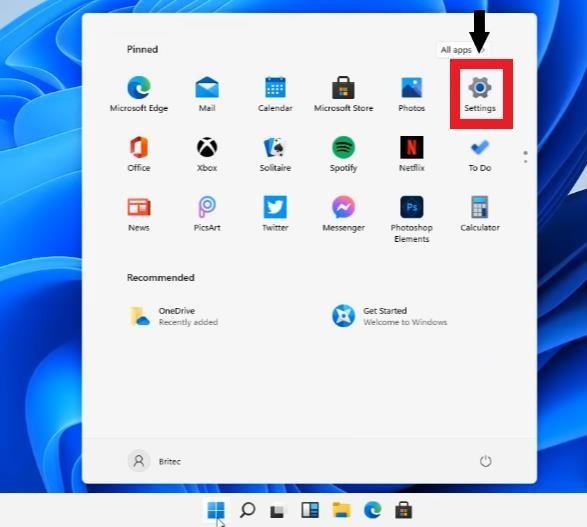
Click the Start menu (Windows icon at the bottom left), then click "Settings" (the gear-shaped icon):
In Settings, go to Update & Security → Activation, then click "Change product key":
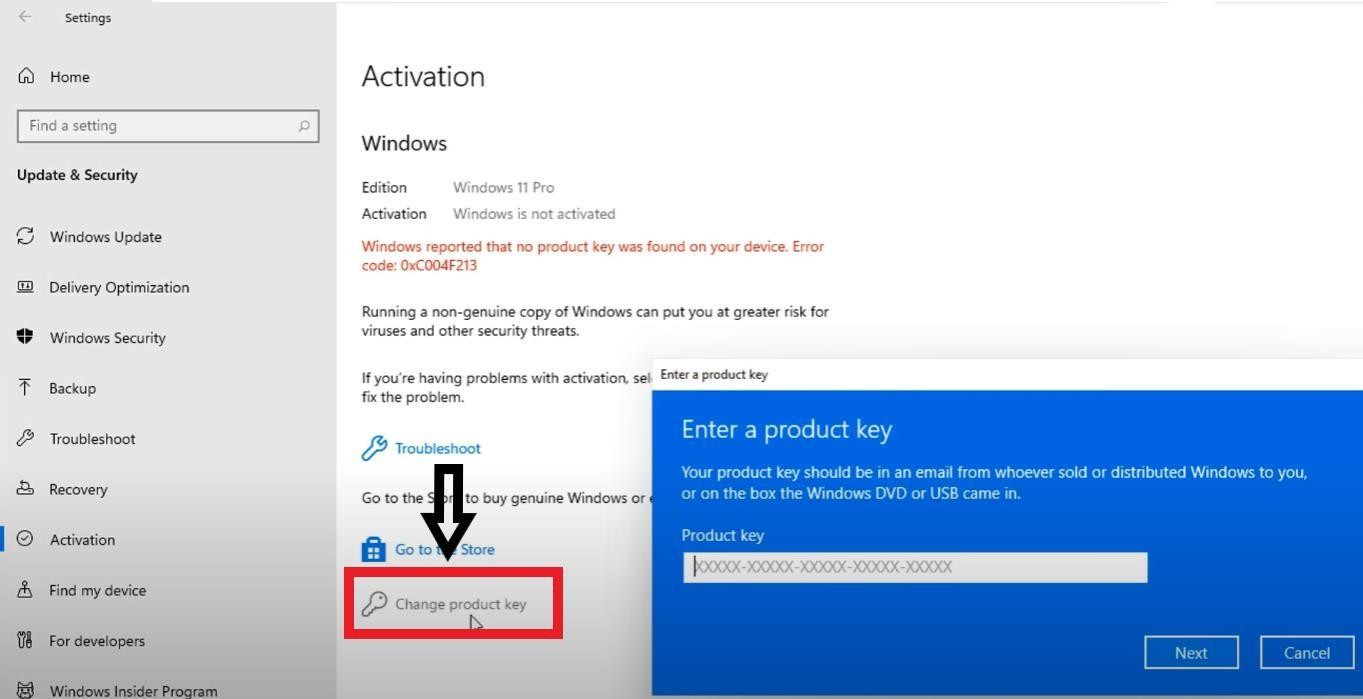
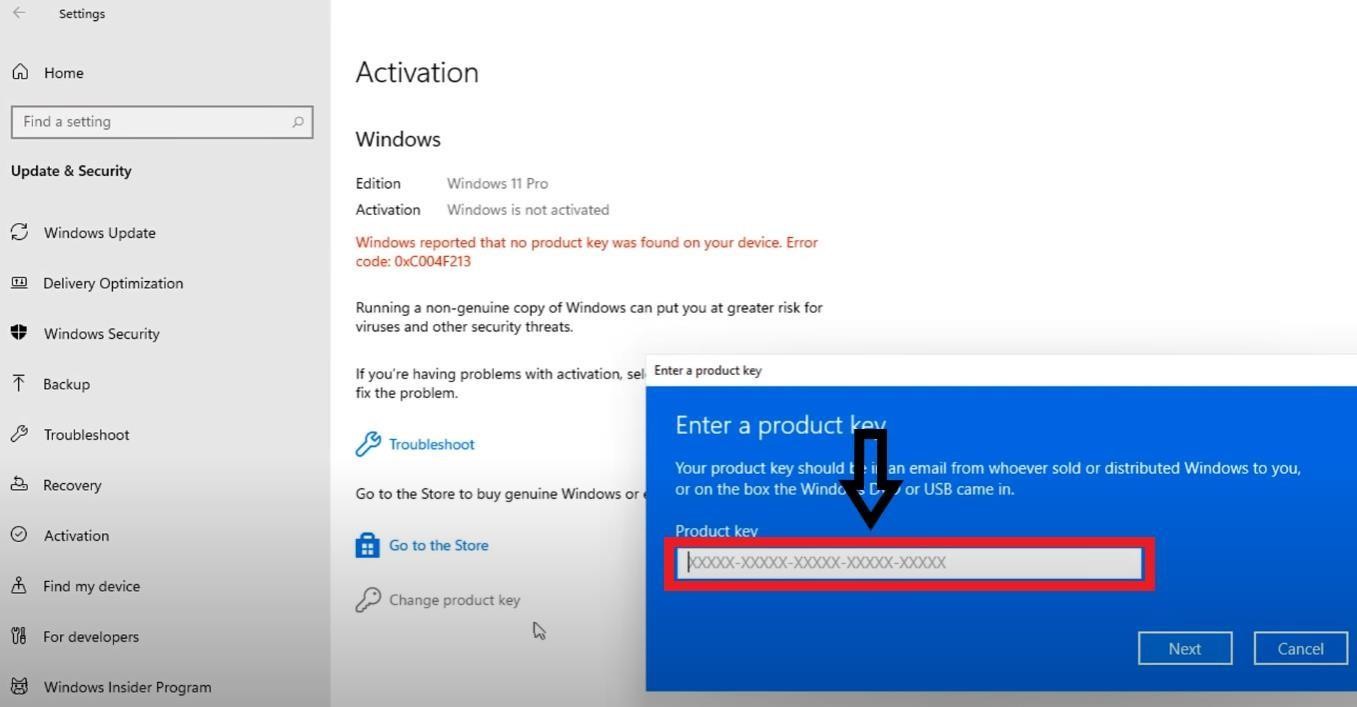
In the window that appears, enter the product key received by email after your purchase, then click "Next":
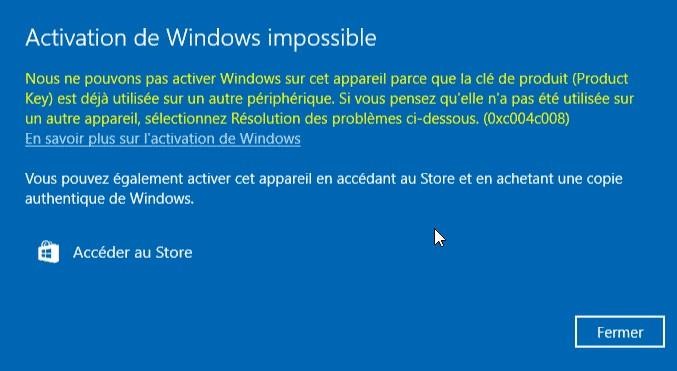
This is completely normal! Simply click "Close" and move on to the next step for phone activation.
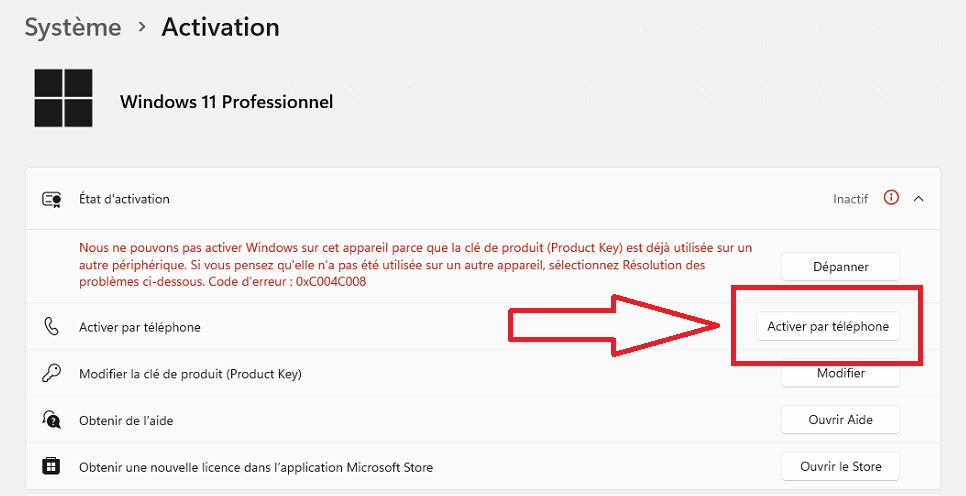
In the Windows search bar, type "Activation" and click the System settings result:

Then click the "Activate by phone" button:
Choose your country (France). Your installation ID appears:
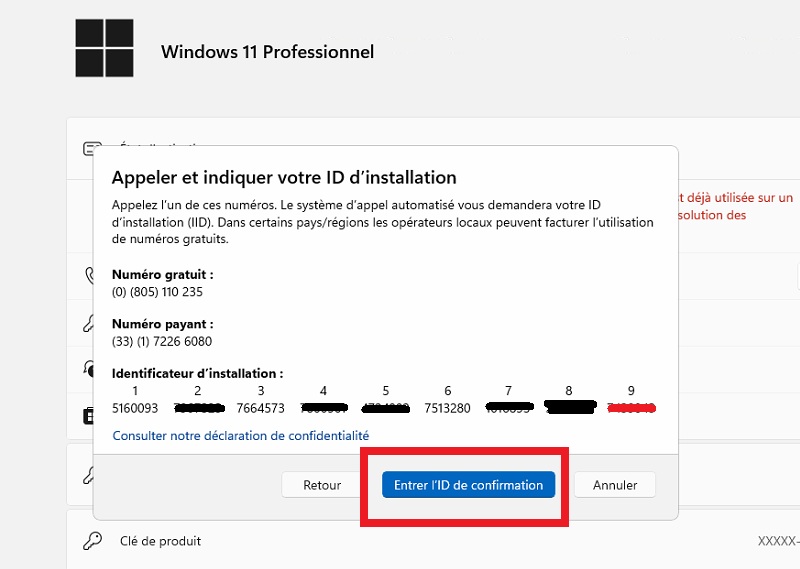
You now have your installation ID. You need to get the confirmation ID to finalize the activation. Go to the official Microsoft website:
Go to the official activation website:
🔗 https://visualsupport.microsoft.com/
Sign in if necessary, then click "Activate a Microsoft product":
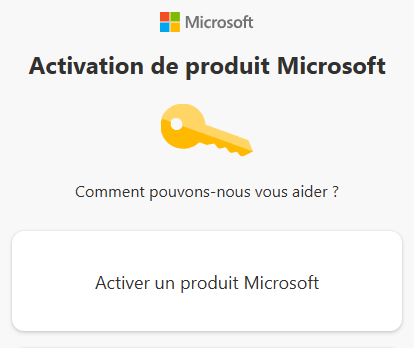
Select in order: Windows → Windows 10
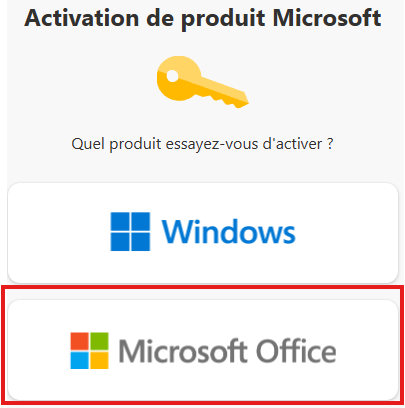
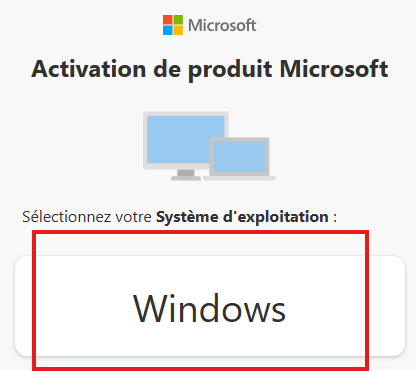
Enter your installation ID (the groups of digits shown in the Windows window) in the website fields, then click "Submit".
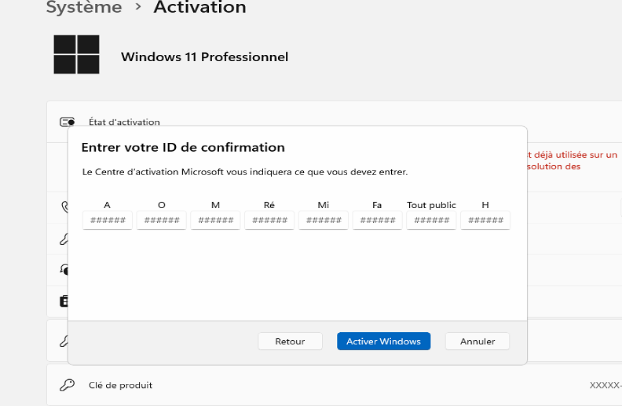
The website provides you with a confirmation ID. Click "Enter the confirmation ID" in the Windows window, then transfer the digits into the boxes:
Your Windows 10 Pro is now activated! Your license is permanent.
Simply restart your computer and the message will disappear.
This license is compatible with Windows 10 Pro only. It is not compatible with N versions. Check in Settings → System → About.
Use the free activation number for your country: See numbers by country →
For any question or technical issue, contact us by email:
Take advantage of our best deals on the most popular Microsoft licenses.
