Ευρωπαϊκή εταιρεία με έδρα τη Γαλλία
Εξαιρετικό4,9/5Trustpilot1,800+ reviews Εγγύηση αντικατάστασης εφ' όρου ζωής
Υποστήριξη μέσω email 24/7
Ευρωπαϊκή εταιρεία με έδρα τη Γαλλία
Εξαιρετικό4,9/5Trustpilot1,800+ reviews Εγγύηση αντικατάστασης εφ' όρου ζωής
Υποστήριξη μέσω email 24/7
Complete guide — Installation & Activation
Follow each step in order to activate your Windows 8 Pro license without difficulty.
Before continuing, make sure you have installed all updates via Windows Update, then enter the code you received to upgrade to Windows 8 Pro. After a restart, enter your activation code.
Click the Start menu (Windows icon at the bottom left), then click "Settings" (the gear-shaped icon):
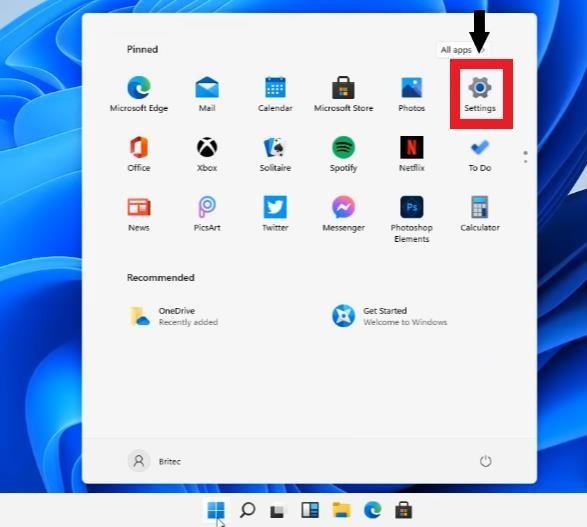
In Settings, go to Update & Security → Activation, then click "Change product key":
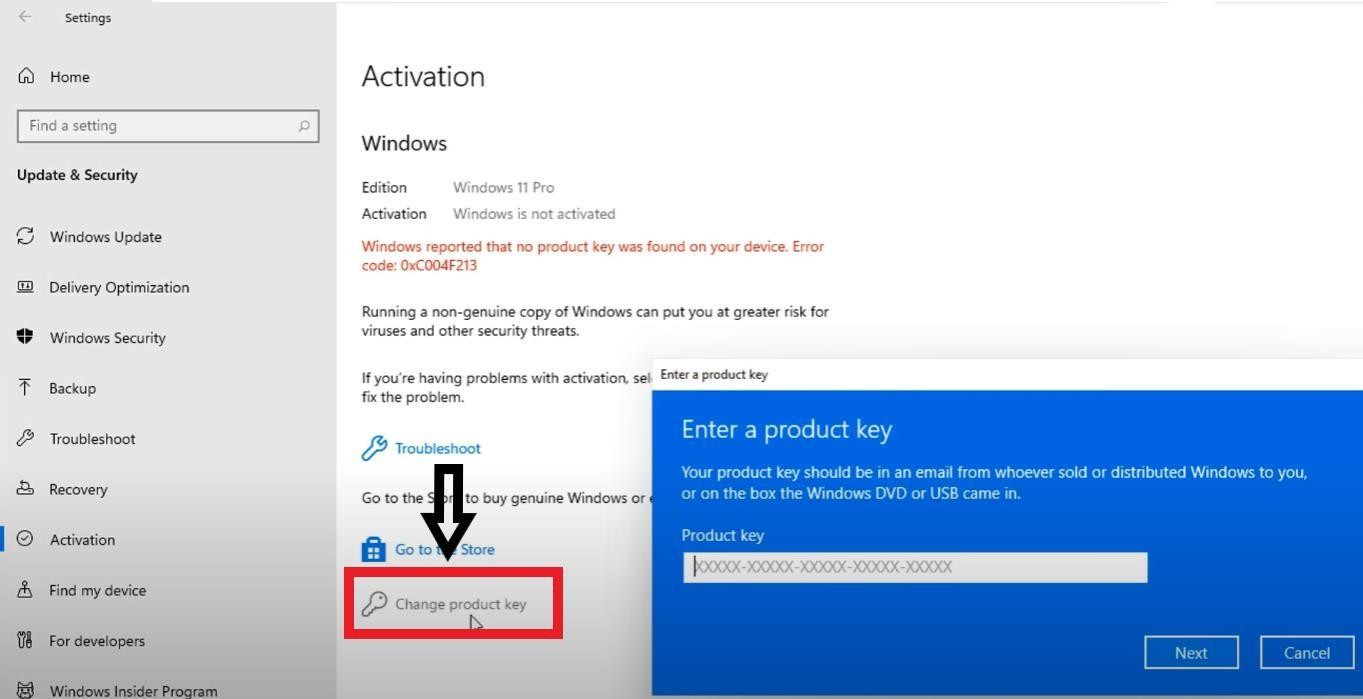
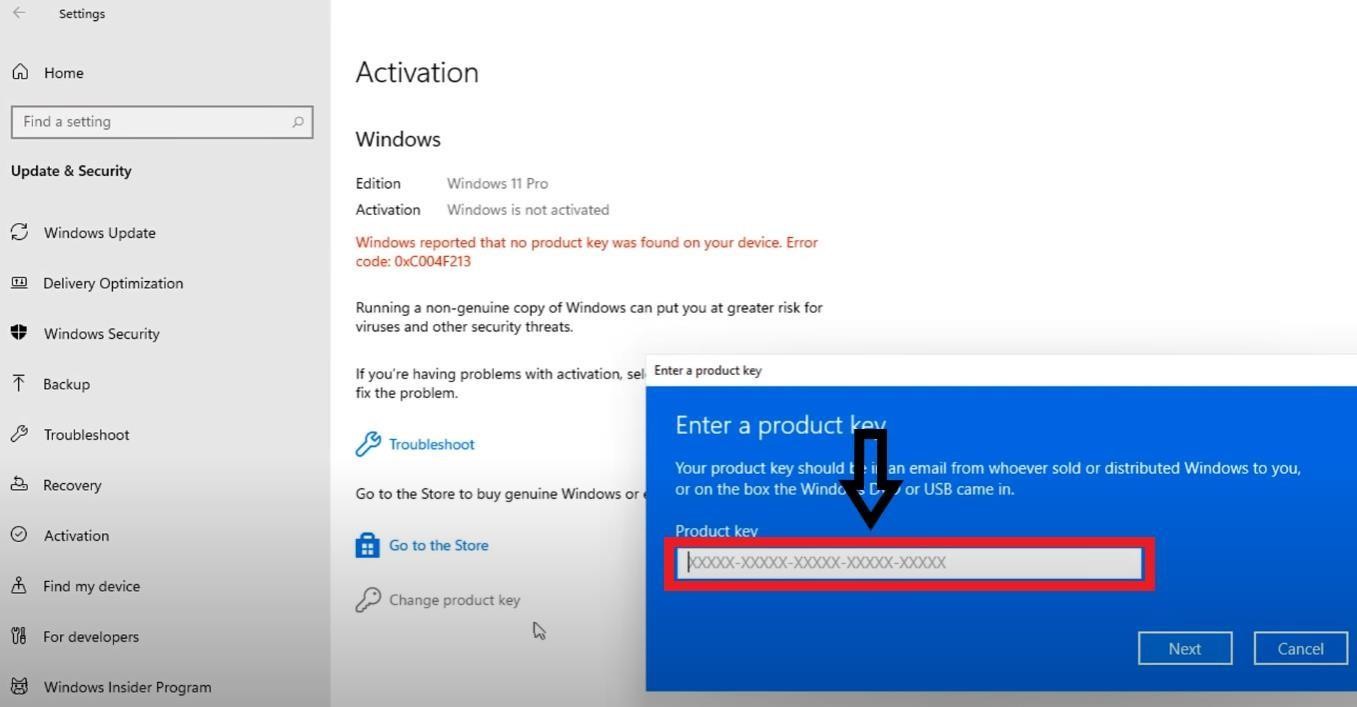
In the window that appears, enter the product key received by email after your purchase, then click "Next":
This is completely normal! Simply click "Close" and move on to the next step for phone activation.
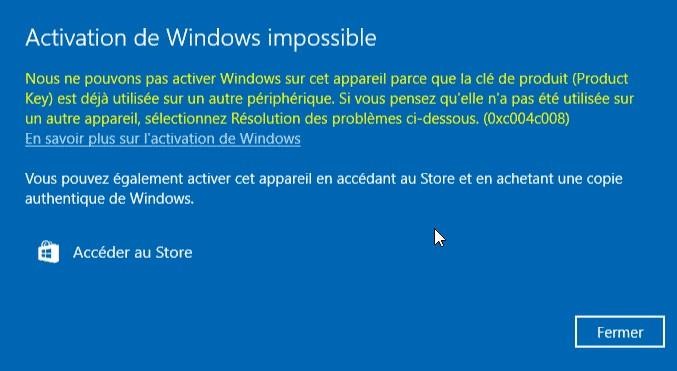
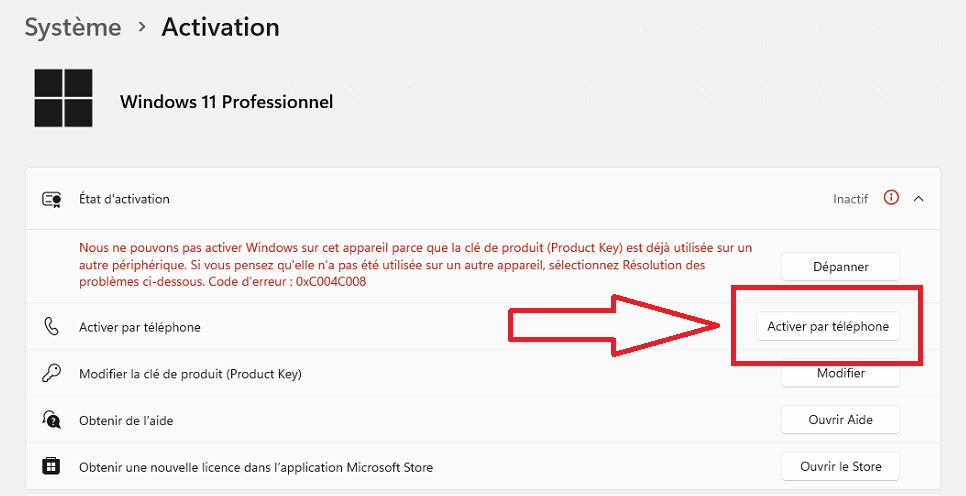
In the Windows search bar, type "Activation" and click the System settings result:

Then click the "Activate by phone" button:
Choose your country (France). Your installation ID appears:
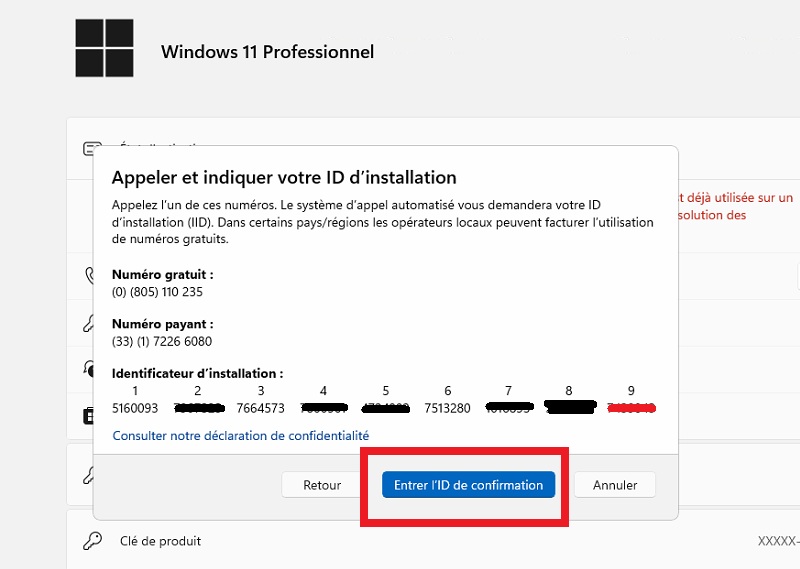
You now have your installation ID. You need to get the confirmation ID to finalize the activation. Go to the official Microsoft website:
Go to the official activation website:
🔗 https://visualsupport.microsoft.com/
Sign in if necessary, then click "Activate a Microsoft product":
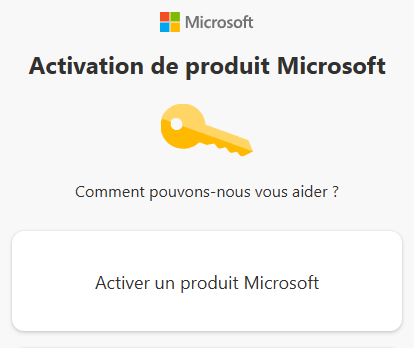
Select in order: Windows → Windows 8
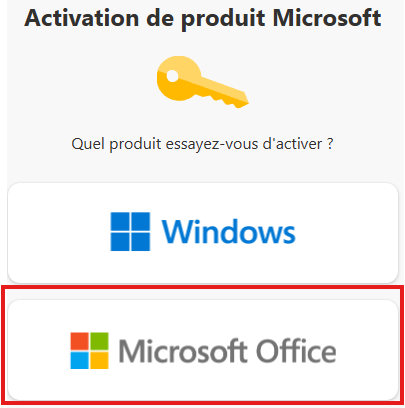
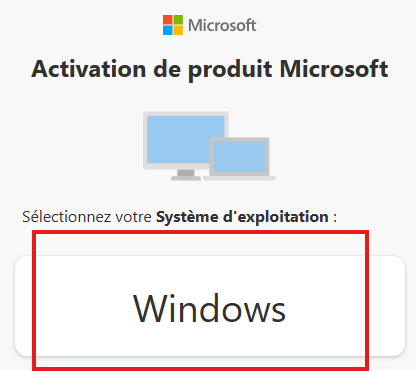
Enter your installation ID (the groups of digits shown in the Windows window) in the website fields, then click "Submit".
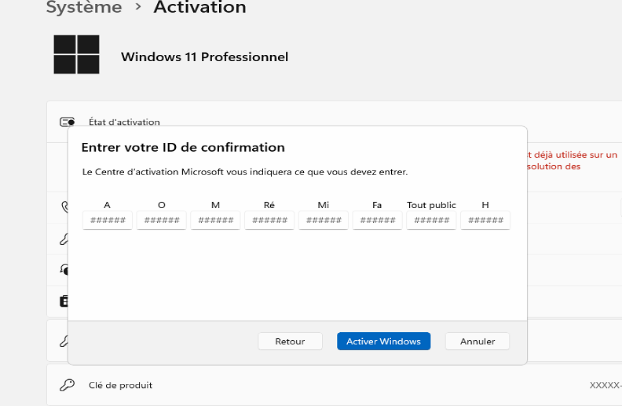
The website provides you with a confirmation ID. Click "Enter the confirmation ID" in the Windows window, then transfer the digits into the boxes:
Your Windows 8 Pro is now activated! Your license is permanent.
Simply restart your computer and the message will disappear.
This license is compatible with Windows 8 Pro only. It is not compatible with N versions. Check in Settings → System → About.
Use the free activation number for your country: See numbers by country →
For any question or technical issue, contact us by email:
Take advantage of our best deals on the most popular Microsoft licenses.
Το καλάθι σας