

Microsoft Access: The Complete Guide to Building Databases
Microsoft Access: A Database for Everyone
Microsoft Access is the database management system (DBMS) built into the Microsoft Office suite. For more than 30 years, it has helped businesses, nonprofits and individuals create, manage and query databases without needing advanced SQL programming skills.
Contrary to what many people think, Access is not just a souped-up spreadsheet. It’s a true relational data management tool that can handle thousands of records, build professional data-entry forms, and generate automated reports.
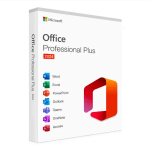
Access is included in Office Professional Plus, available for just see price on euroshopkey.com.
Table of Contents
- 1. What is Microsoft Access used for?
- 2. Access vs Excel: when to use which
- 3. Key features
- 4. Building your first database
- 5. Real-world use cases
- 6. How to get Microsoft Access
- 7. Frequently asked questions
1. What Is Microsoft Access Used For?
Microsoft Access lets you:
- Store structured data in relational tables
- Create relationships between different tables (customers ↔ orders ↔ products)
- Design data-entry forms that are intuitive for non-technical users
- Generate printable reports with automatic calculations
- Automate processes with macros and VBA
- Import/export data from Excel, CSV, SQL Server, SharePoint
2. Access vs Excel: When to Use Which?
This is the most common question. Many users treat Excel as a database, but that’s not what it’s for. Here’s when to switch to Access:
| Criterion | Excel | Access |
|---|---|---|
| Number of records | Up to 1,048,576 rows | Up to 2 GB (millions of records) |
| Relationships between data | ❌ Difficult | ✅ Native (1:N, N:N relationships) |
| Data-entry forms | ❌ Limited | ✅ Professional forms |
| Multi-user | ⚠️ Frequent conflicts | ✅ Simultaneous access possible |
| Automated reports | ⚠️ Limited | ✅ Advanced reports |
| Calculations and analysis | ✅ Excellent | ⚠️ SQL queries |
| Charts | ✅ Excellent | ⚠️ Basic |
Simple rule: If you have more than 10,000 rows, if you need to link several tables, or if several people enter data → move to Access.
3. The Key Features of Access
Tables and relationships
Create tables with typed fields (text, number, date, Yes/No, attachments). Define primary keys and relationships between tables to ensure data integrity.
Queries
Query your data with the visual query wizard or write SQL directly. Select, update, delete, make-table, and crosstab queries.
Forms
Design professional data-entry interfaces with text boxes, drop-down lists, checkboxes, tabs and subforms. Users never need to see the tables directly.
Reports
Generate printable documents: invoices, purchase orders, labels, summary reports with automatic totals and subtotals.
Macros and VBA
Automate repetitive tasks with simple macros or VBA code for complex processes (sending emails, automatic imports, advanced validation).
4. Building Your First Database
Here are the steps to get started with Microsoft Access:
Step 1: Plan your structure
Identify the data to store and the relationships between them. Example for customer management: a Customers table, an Orders table, a Products table.
Step 2: Create the tables
Open Access and create a new database. Define your tables with their fields and data types.
Step 3: Define the relationships
On the “Database Tools” → “Relationships” tab, link the tables together via primary and foreign keys.
Step 4: Create a form
Select a table, then “Create” → “Form”. Access automatically generates a data-entry form that you can customize.
Step 5: Add queries and reports
Create queries to filter and analyze your data, then reports to present it professionally.
5. Real-World Use Cases
- Customer management/CRM: contact tracking, interaction history, follow-ups
- Inventory management: stock in/out, inventory, reorder thresholds
- Invoicing: invoice generation, payment tracking, automatic reminders
- Project management: task tracking, resource assignment, reporting
- Property management: tenants, leases, rent, charges
- Nonprofits: members, dues, events, simplified accounting
6. How to Get Microsoft Access
Access is NOT available on its own. It is only included in the Professional Plus editions of Office:
See all editions: Complete Office 2024 Bundle guide.
7. Frequently Asked Questions — Microsoft Access
Is Access included in Office Home & Student?
No. Access is only included in Office Professional Plus and Microsoft 365 Business/Enterprise.
Is Access available on Mac?
No. Microsoft Access is only available for Windows. On Mac, you can use FileMaker Pro as an alternative or run Access via a Windows virtual machine.
Can Access replace SQL Server?
For small databases (up to a few tens of thousands of records with few simultaneous users), Access is a perfect fit. For larger databases or web applications, SQL Server is better suited.
Can I share an Access database over a network?
Yes. You can place the .accdb file in a shared network folder. For better multi-user performance, split the front-end (forms) from the back-end (data).